
Description
If you have configured the Server-Side feature, it is important to update the Sender Policy Framework (SPF) record for each domain from which you send emails.
If you don't do this, there is a risk that any messages that are routed from Exclaimer back to your email service can be marked as spam by recipients.
Please click on the required options listed below to go through the detailed description:
The exact process varies from one service provider to another; typically, it involves adding to an existing DNS TXT record.
The majority of organizations follow this process:
- Identify your DNS.
- Sign into your DNS provider's management console.
- Locate an existing SPF record for your domain (or create one if none exists).
- Add Exclaimer's SPF include mechanism to your SPF record.
- Repeat steps 3 and 4 for each domain you use to send an email.
- Save your changes.
Typically, your DNS provider will be the same as your web-hosting provider. If you are not sure how to access the SPF record, we recommend you contact the hosting provider or whoever is responsible for hosting within the organization to assist you further.
Example
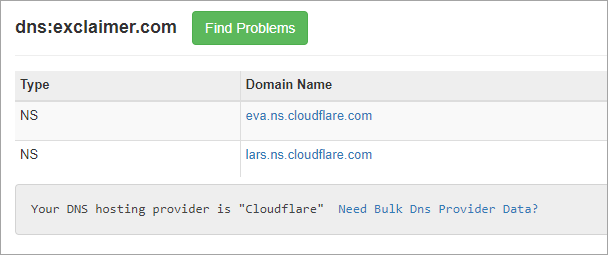
The SPF record needs to be updated to include the following SPF include mechanism:
- Where <region code> is replaced with the region code for the subscription (see how you can check your region code).
Example 1:
Before updating the record:
v=spf1 include:spf.protection.outlook.com ~all
After updating the record:
v=spf1 include:spf.protection.outlook.com include:spf.uae.exclaimer.net ~all
Example 2:
Before updating the record:
v=spf1 ip4:151.236.35.177 include:spf.protection.outlook.com include:_spf.salesforce.com -all
After updating the record:
v=spf1 ip4:151.236.35.177 include:spf.protection.outlook.com include:_spf.salesforce.com include:spf.us.exclaimer.net -all
Tips for updating your SPF record:
- You shouldn't have more than one SPF record: having more than one record will lead to errors.
- Don't be tempted to copy and paste. Type in the SPF record changes manually to avoid copying any hidden content from your browser.
- Don't add anything after "all": this is treated as the end of the record, so anything after this will be ignored.
- Check that you haven't included any extra spaces: these will lead to errors.
- Don't remove any existing mechanism for other services, such as Microsoft, Google, Mimecast and so on.
- After making changes, use an SPF record check tool like MXToolbox's SPF Lookup to validate your changes. Make sure your record passes all the tests.
Example: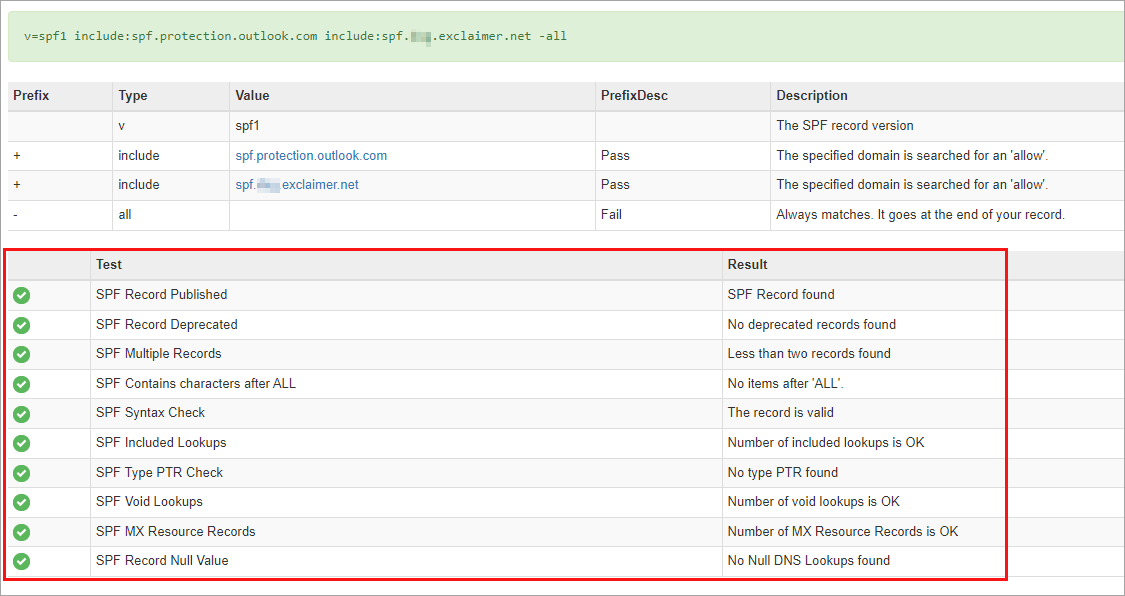
- If you’ve reached your 10-limit SPF lookup or prefer to target static IPs, see Exclaimer Simple Mail Transfer Protocol (SMTP) host list and Internet Protocol (IP) Whitelist for more information.
To check your region code:
- Log in to the Exclaimer portal (portal.exclaimer.com) using the email address provided when you created the subscription.
-
Under Your Subscriptions, click Manage...
NOTE: If you cannot see the Manage option against the required subscription, then you are not the subscription administrator. -
Under Subscription details, locate the Server to view your region.
Region codes (Microsoft 365):au Australia ca Canada de Germany eu Europe uae UAE uk United Kingdom us United States
Region codes (Google Workspace):eu Europe us United States